

The “kubectl exec” command helps you to get inside the running container by opening it and accessing its shell. The shell gives a command-line interface for the running commands and interact with the container’s environment, likely to running commands on our own computer’s command line.
In this article,we will explore abour kubectl exec and learn how to use “kubectl exec” to get a shell to the running container. So let’s get started.
What is Kubernetes?
Kubernetes is considered as one of the powerful container orchestration platform for deploying and managing the containerized applications effectively. However, managing containerized applications is more than about just getting them and running up. Sometimes, it requires to interact with containers to perform crucial tasks, like debugging issues or modifying the files or directories.
So, the question is now that how can you interact with the running container? The answer is simple; by using the “kubectl exec” command. Now let’s understand what is kubectl exec.
What is Kubectl Exec?
Kubectl
Kubectl is the command line tool for communicating with Kubernetes clusters with the help of Kubernetes API. You can utilize it to track the Kubernetes status, edit resources, apply manifest files, and what not. It is the general admin tool for the k8s clusters.
It majorly relies on your operating system whether you need to install kubectl separately. The packages for Kubernetes and Docker may install it for you.
Kubectl Exec
Exec is one of the kubectl’s most useful tools. You can utulize it to execute the command inside the container. If you are familiar with Docker, then kubectl’s exec might remind you of the Docker’s exec command.
Kubectl Exec Syntax
The syntax for the “kubectl exec” command is given below:
kubectl exec [OPTIONS] POD_NAME -- COMMAND [ARGS...]Now let’s know what each part of the syntax tells:
1. kubectl exec: This is the command that is used to execute commands inside the container.
2. [OPTIONS]: These are the optional flags that you can pass to “kubectl exec” to modify the behavior. For instance, you can use this “-it” flag to run the command in the interactive mode.
3. POD_NAME: This is the name of the Pod that contains the container you need to execute commands in.
4. —: This is a separator that explains “kubectl exec” to treat all the subsequent arguments as the command to execute inside container.
5. COMMAND: This is the command you might need to execute inside the container.
6. [ARGS…]: These are the optional arguments to the command you might need to execute.
Open and Access the Container’s Shell Using Kubectl Exec
In this section, we’ll explore how to open and access a container’s shell using the “kubectl exec” command. I’ll walk you through an example that involves five simple steps.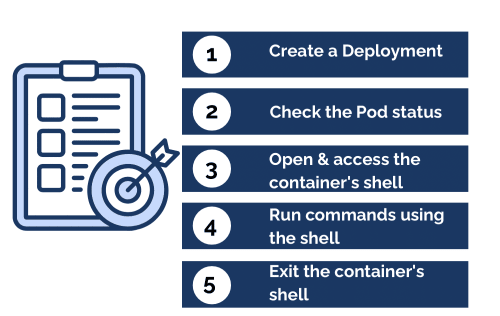
Step 1: Create a Deployment
Before we can execute shell commands inside a container, we need to create a Kubernetes deployment. Open a terminal and run the following command:
kubectl create deployment mynginx --image=nginxThis command creates a deployment resource named “mynginx” using the “nginx” Docker image. And the deployment creates a Pod that hosts the container running the “nginx” web server
Step 2: Check the Pod status
Once the deployment is created, we need to check the Pod status to ensure that it’s running correctly. To do this, run the following command:
kubectl get podsThis command will display a list of all the Pods running in your Kubernetes cluster. Look for the Pod with a name starting with “mynginx” and ensure that it’s in the “Running” state.
Step 3: Open and access the container’s shell
A shell is a program that provides a command-line interface for interacting with an operating system, including a container’s operating system. It allows you to enter commands and execute them within the container’s environment.
To open and access the shell of the container running the “nginx” web server, run the following command:
kubectl exec -it mynginx-56766fcf49-4b6ls -- /bin/bashHere, “/bin/bash” is the command that will be executed inside the container running inside the “mynginx-56766fcf49-4b6ls” Pod. Because we have specified “bash”, you’ll see a Bash shell session that’s connected to the container.
You can now run any command that you would normally run using a shell. Before we jump into that, let’s explore the “-it” flag in more detail.
The “-it” flag is actually a combination of two flags: “-i” and “-t”.
The “-i” flag stands for “interactive” and tells “kubectl” that we want an interactive session with the container. This means that we’ll be able to send commands to the container and see its output.
The “-t” flag is used to allocate a pseudo-TTY (terminal) and tells “kubectl” that we want a terminal session with the container. This means that we’ll see the output from the container in a terminal window.
Without the “-t” flag, we won’t see the shell prompt. The output from the container will still be displayed, but we won’t be able to interact with the container’s shell. We won’t be able to execute any commands that require user input.
Step 4: Run commands using the shell
Now that we have access to the container’s shell, let’s run some commands inside the container. Let’s use the “curl” command to access the default page served by the “nginx” web server running inside the container. Run the command below:
curl http://localhostAfter executing the command, you’ll see an output similar to this:
The output you see above is the content of the “index.html” file, which is the default page served by the “nginx” web server. Note that the “index.html” file is stored in the “/usr/share/nginx/html/” directory inside the container.
Now, let’s replace the contents of the “index.html” file with the text “Welcome to Floydee “. To do this, run the following command:
echo "Welcome to Floydee" > /usr/share/nginx/html/index.htmlThis command will write the text “Welcome to Floydee ” to the “index.html” file, effectively replacing its content.
Now, let’s execute the “curl” command again to verify that the change has been implemented successfully.
curl http://localhostAfter executing the command, you’ll see an output similar to this:
As you can see, the default page is replaced with the text “Welcome to Floydee “.
Congratulations! You have now successfully interacted with a running container from it’s shell.
Step 5: Exit the container’s shell
To exit the container’s shell and back to the terminal, press the “CTRL + D” button or you can run the “exit” command.
Conclusion
In this post, we learned how to execute shell commands into a running container using the “kubectl exec” command. It is a powerful tool for managing and troubleshooting containerized applications in a Kubernetes cluster.
If you have a Docker container that is not yet deployed to a Kubernetes cluster, you can still execute shell commands inside the container using the “docker exec” command.


